
Web Authors Guide
MCLA uses Modern Campus (formerly OmniUpdate) as its Content Management System (CMS), which publishes content to www.mcla.edu. This guide is designed to help web authors create accessible, engaging content that aligns with AP style guidelines and the MCLA brand. It will be updated regularly. While not an exhaustive resource, it offers helpful tips and best practices for working on the web. For suggestions or content updates, please contact marketing@mcla.edu.
Modern Campus Login
Direct Edit
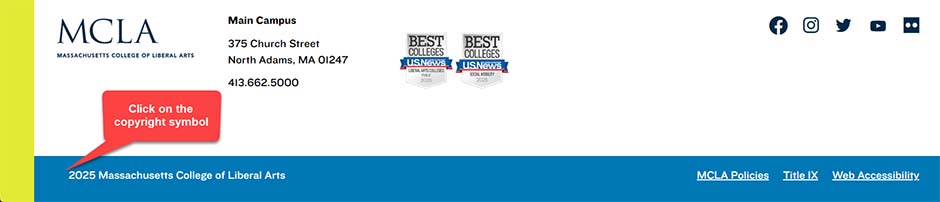
The DirectEdit link is the © sign in the footer of the MCLA website. This DirectEdit link appears on every page of the MCLA website. Clicking the link prompts you to log in using your Trailblazer ID and password. Assuming you have editing permissions for that page and that you logged in successfully, you will then be taken to the Edit View for the page. From there, you will be able to edit any editable regions and will also be able to navigate to other pages and information that you have access to using the Modern Campus CMS menus.
Quick Start

The dashboard provides a brief snapshot of content management and system information. It is accessible from the button in the navigation bar located at the top of the screen:
The site tree is the main structure of the MCLA website. The site tree shows all the pages, components, and folders that make up the website. You can use the site tree to navigate between the items that you need to work on:
To ensure all content meets MCLA’s accessibility standards and brand styles, web authors submit page edits to an approver for publishing.
Common CMS Terms
Alt Text: Alt Text is a required description of the image which is read aloud to visually impaired users by screen-reading tools and helps improve SEO. It also appears when the image fails to load.
Assets: Images, documents, multimedia files, and other items that can be uploaded with each having its own unique ID, and when published to the live server, its own URL.
Child: A page, folder, or component, that is beneath or inside another page, component, or folder.
CMS: Abbreviation for "content management system." In this case, Modern Campus.
Components: Containers that help display pieces of content on a page in a particular format. Components aren't pages, but they are used in conjunction with pages to display certain types of content.
Headings: Headings, also called "headers," provide hierarchical structure to digital content and are indexed by search engines. There are six forms of headings, referred to as h1—h6, with the h1 being the most important.
Hyperlink: A hyperlink, or "link," is a word, phrase, or image that can be clicked on to navigate to a new location. When the cursor hovers over a link, the arrow should change to a small hand.
ID: A unique ID is given to every page and asset in the CMS.
Folders: Used to contain and organize pages and components and can also be used to hide pages from the navigation of a webpage.
Modal: An element that displays in front of and deactivates other page content.
Pages: Each page has its own unique ID within Modern Campus, and when published to the live server, has its own URL. There are several different page types to choose from, each with a different purpose.
Parent: A page or component that has one or more other pages, components, or folders in the site tree structure.
Site Tree: The site tree is the main structure of the MCLA website. This shows all the pages, folders, and components that make up the website.
Tooltip: A tooltip is a message that appears when hovering over an icon, image, hyperlink, or other elements such as a description of a button's function, what an abbreviation stands for, etc. On mobile, a tooltip is displayed upon long-pressing an element.
URL: A Uniform Resource Locator (URL), is commonly known as a web address.